Rather skip the build? The finished tracker is $9.
Coming soon · Get notifiedFree guide
The Task
Tracker Guide
Every property in this guide came from a simple, specific prompt — copy it, change the details, and you’ll have your own in about ten minutes.
Why this exists
Returns. School forms. Appointments.
Things to buy. Things someone else said they'd handle. The problem isn't that any one of them is hard — it's that someone has to keep remembering all of them.
The Family Task Tracker gives that work one visible place: what needs doing, who's handling it, when it needs to happen, and how long it actually takes.
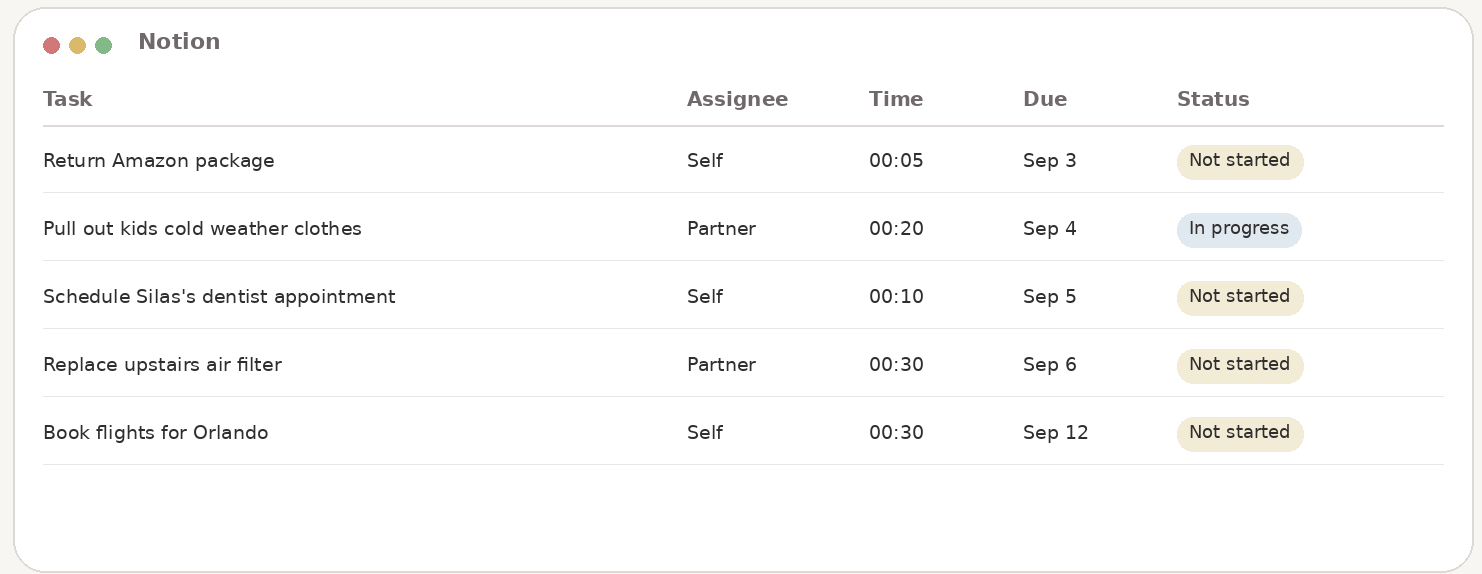
See it in action
See it in action
This is the system in real life — one place to capture what needs to happen, who owns it, and what's actually next.
Task Tracker demo
Start here
Three things before the prompt.
None of this takes more than a couple of minutes, and you only ever do it once.
 Download Notion and create a free account.notion.com, or the App Store / Google Play. Sign up with an email or Google — no credit card.
Already have a list somewhere?
Most people do — Notes app, a sticky note, the tab that’s been open for two weeks. Get it in front of your AI tool first: paste a typed list straight into the chat, or screenshot a handwritten one. AI reads images just as easily as text.
The one prompt
Copy this. Paste it once.
One prompt builds the whole thing — every property, the filtered view, and your list if you shared one.
Build me a task tracker database in Notion for managing my household with these properties: a Category select field with options Finances, Household, Kids, Events, Travel, Personal, Professional; a Time Commitment property formatted as HH:MM showing how long each task takes; an Assignee person property; a Due Date property; and a Status field limited to three options — Not started, In progress, Done; and a Priority select field with two options, Critical and Non-urgent. Then create a view called 'My Tasks' that shows only tasks where Assignee is me and Status is Not started or In progress. If I've shared a to-do list with you, add each item as its own task, matching Category where you can tell what it is.
The seven properties
What each one actually does.
The setup is above. Everything here is the “nice to know” detail — open only what you want.
01 — Category
A flat list can’t sort itself. This is what makes one table hold your whole house without turning into chaos — seven buckets that already match how your house actually runs.
Schedule Silas’s dentist appointment · Kids
02 — Time Commitment
“Quick task” and “the thing that eats your whole Tuesday” look identical on a checklist until you separate them. Written as HH:MM, so it’s scannable at a glance.
Book flights for Thanksgiving trip · Travel · 00:30
03 — Assignee
The moment someone’s tagged, they’re notified automatically — no extra setup.
Return Amazon package — shoes that didn’t fit · Household · Assigned: You
04 — Due Date
A task with no deadline is just a suggestion. This is what turns “someday” into “actually done.”
Pull out kids cold-weather clothes · Kids · Due 9/4
05 — Status
Kept dead simple on purpose: Not started, In progress, Done. This is also how tasks get “checked off” — when something’s finished, you mark it Done.
Cancel subscription noticed on the statement · Finances · Done
06 — Filtered Views
The “My Tasks” view shows only what’s assigned to you and still open — Not started or In progress. The moment something’s marked Done, it drops off the list. No stale tasks, no scrolling past things you already handled.
07 — Priority
Two options, on purpose. A long scale just turns into everything being “high.” This one forces the actual call: does it matter today, or doesn’t it?
There’s a real consequence if it slips — a deadline, a person waiting, money on the line.
Worth doing, fine to move. Most of the list lives here, and that’s normal.
Pay the water bill before the late fee · Finances · Critical
See the system
A tracker you can actually scan.
A compact mobile example of how the properties work together.
Adding new tasks later
Something new comes up?
Go back to that same project every time. Adding a one-off task is just a line to AI — two ways, both fine.
“Add ‘Make the dog a vet appointment’ to my task tracker.”
Everything else can be filled in later, by you or AI.
“Add ‘Make the dog a vet appointment’ — Category: Household, Assignee: me, Due: Friday, Time Commitment: 00:20.”
Front-load it if you already know the details.
I use talk-to-text for this — I never actually type either prompt. Say it while you’re driving, folding laundry, whatever. It still lands exactly where it needs to.
Make it yours
Ask AI to change anything.
You’re not learning Notion. You’re learning how to describe what you want.
Add a category
“Add a new option to my Category property called ____.”
Remove a category
“Remove the ____ option from my Category property.”
Add a property
“Add a property called ____ that tracks ____.”
New filtered view
“Create a view filtered to Assignee/Category/Status equals ____.”
Reorganize by person
“Group my tasks by Assignee instead of Category.”
Nice to know
This isn’t your calendar.
Your calendar tells you when something happens. This tracker holds everything that happens before that — the noticing, the deciding, the chasing down details.
Anticipating what will be needed.
Figuring out the options.
Making the decision.
Checking that it actually happened.
The calendar just shows “Dentist, 2pm.” This is where that came from — plus everything that never makes the calendar at all.
Before you go
That’s the whole system.
Seven properties. One prompt. You’ve got one honest table instead of a dozen things floating around in your head.
No new app to learn. No daily upkeep. Just somewhere it all actually lives.
Household, managed.
Start with the stuff living in your head.
Three small setups that take real things off your plate this week. Free.
Plus new systems when they’re ready. No inbox avalanche.